-
Table of Contents
VLOOKUP TO COMPARE TWO LISTS
When it comes to comparing two lists in Excel, the VLOOKUP function is a powerful tool that can save you time and effort. Whether you are looking to find matching values, identify differences, or simply reconcile data, VLOOKUP can help streamline the process. In this article, we will explore how to use VLOOKUP to compare two lists effectively.
Understanding VLOOKUP
VLOOKUP stands for “Vertical Lookup” and is a function in Excel that allows you to search for a value in the first column of a table and return a corresponding value in the same row from another column. This function is commonly used to perform lookups and comparisons between two lists of data.
How to Use VLOOKUP to Compare Two Lists
Here is a step-by-step guide on how to use VLOOKUP to compare two lists in Excel:
- Organize your data: Make sure that both lists are in separate columns in Excel.
- Insert a new column: Insert a new column next to one of the lists where you want to display the comparison results.
- Enter the VLOOKUP formula: In the first cell of the new column, enter the VLOOKUP formula. The syntax of the formula is =VLOOKUP(lookup_value, table_array, col_index_num, [range_lookup]).
- Drag the formula down: Drag the formula down to apply it to the entire column.
Example of Using VLOOKUP to Compare Two Lists
Let’s consider an example where we have two lists of products: List A and List B.
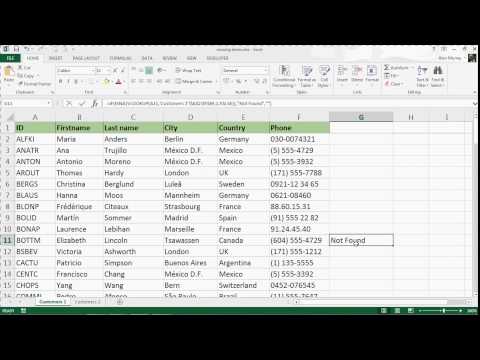
. We want to compare the two lists and identify which products are present in both lists.
List A:
| Product |
|---|
| Apple |
| Orange |
| Banana |
List B:
| Product |
|---|
| Apple |
| Grapes |
| Banana |
By using VLOOKUP, we can compare the two lists and identify that “Apple” and “Banana” are present in both lists.
Benefits of Using VLOOKUP to Compare Two Lists
There are several benefits to using VLOOKUP to compare two lists:
- Efficiency: VLOOKUP automates the comparison process, saving time and effort.
- Accuracy: VLOOKUP ensures accurate results by matching values precisely.
- Scalability: VLOOKUP can handle large datasets with ease, making it suitable for complex comparisons.
Conclusion
Using VLOOKUP to compare two lists in Excel can help you streamline the process of identifying matching values and differences. By following the steps outlined in this article and leveraging the power of VLOOKUP, you can efficiently compare data sets and make informed decisions based on the results.
For more advanced techniques and tips on using VLOOKUP, check out this Microsoft support article.