

-
Table of Contents
Unity Tutorial for Beginners
Unity is a powerful and versatile game development platform that has gained immense popularity among developers of all skill levels. Whether you are a complete beginner or have some experience in game development, Unity provides a user-friendly interface and a wide range of tools to help you bring your creative ideas to life. In this article, we will provide a comprehensive Unity tutorial for beginners to help you get started on your game development journey.
Getting Started with Unity
If you are new to Unity, the first step is to download and install the Unity Hub, which is a centralized platform for managing your Unity projects. Once you have installed Unity Hub, you can create a new project by selecting the appropriate settings such as project name, location, and template.
Unity Interface
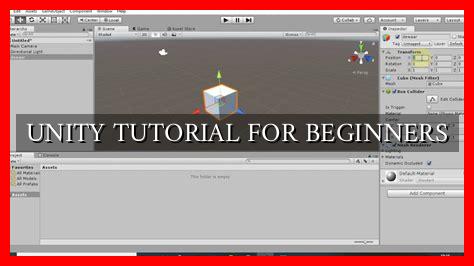
Upon creating a new project, you will be greeted with the Unity interface, which consists of various panels and windows that allow you to navigate and work on your project. Some of the key components of the Unity interface include:
- Scene view: where you can visually design and edit your game world
- Game view: where you can preview your game in real-time
- Hierarchy: a list of all the game objects in your scene
- Inspector: where you can view and edit the properties of selected game objects
Creating Game Objects
In Unity, game objects are the building blocks of your game world.

. You can create game objects such as characters, props, and environments by right-clicking in the Hierarchy panel and selecting “Create Empty” or choosing from a variety of pre-made assets available in the Asset Store.
Adding Components
Game objects in Unity are composed of components that define their behavior and appearance. You can add components such as scripts, colliders, and rigidbodies to game objects by selecting the object and clicking on the “Add Component” button in the Inspector panel.
Scripting in Unity
Unity uses C# as its primary scripting language, which allows you to add custom functionality to your game objects. You can create scripts by right-clicking in the Project panel, selecting “Create” > “C# Script,” and attaching the script to a game object by dragging it onto the object in the Hierarchy panel.
Example:
Here is a simple example of a C# script that moves a game object when the player presses a key:
“`csharp
using UnityEngine;
public class MoveObject : MonoBehaviour
{
public float speed = 5f;
void Update()
{
float moveInput = Input.GetAxis(“Horizontal”);
transform.Translate(Vector3.right * moveInput * speed * Time.deltaTime);
}
}
“`
Testing and Building Your Game
Once you have created your game world and added functionality to your game objects, you can test your game by clicking on the “Play” button in the Unity interface. If everything works as expected, you can build your game for various platforms such as PC, mobile, or console by selecting “File” > “Build Settings” and choosing the desired platform.
Conclusion
Unity is a powerful game development platform that offers a wide range of tools and features for beginners to create their own games. By following this Unity tutorial for beginners, you can learn the basics of Unity game development and start building your own projects. Remember to experiment, explore, and have fun while creating your games in Unity!
For more in-depth tutorials and resources, you can visit the official Unity Learn website.


