

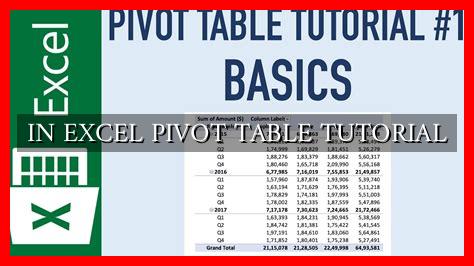
-
Table of Contents
IN EXCEL PIVOT TABLE TUTORIAL
Excel pivot tables are a powerful tool that can help you analyze and summarize large amounts of data with ease. Whether you are a beginner or an experienced Excel user, understanding how to create and use pivot tables can significantly enhance your data analysis skills. In this tutorial, we will explore the basics of pivot tables in Excel and provide you with step-by-step instructions on how to create and customize them.
What is a Pivot Table?
A pivot table is a data processing tool in Excel that allows you to summarize and analyze large datasets. It enables you to extract meaningful insights from your data by organizing and presenting it in a more digestible format. With pivot tables, you can quickly create reports, identify trends, and make informed decisions based on your data.
Creating a Pivot Table
Follow these steps to create a pivot table in Excel:
- Select the data range you want to analyze.
- Go to the “Insert” tab on the Excel ribbon.
- Click on “PivotTable” and choose where you want to place the pivot table (new worksheet or existing worksheet).
- Drag and drop the fields you want to analyze into the rows, columns, and values sections of the pivot table.
- Customize the pivot table by formatting the layout, applying filters, and adding calculations.
Customizing a Pivot Table
Once you have created a pivot table, you can customize it to suit your analysis needs.
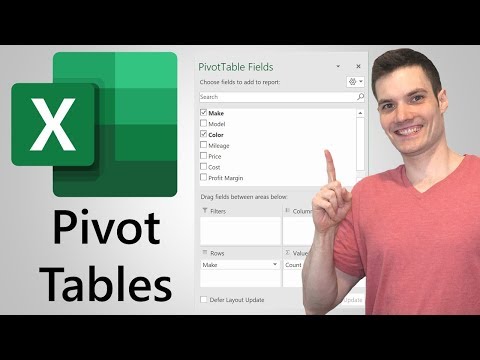
. Here are some ways to customize a pivot table:
- Change the layout by rearranging the fields in the rows and columns sections.
- Apply filters to focus on specific data points or categories.
- Add calculations such as sum, average, count, etc., to analyze the data further.
- Format the pivot table to improve readability and visual appeal.
Advanced Pivot Table Features
Excel offers several advanced features that can enhance your pivot table analysis:
- Slicers: Slicers are visual filters that allow you to interactively analyze data in a pivot table.
- Pivot Charts: You can create visual representations of your pivot table data using pivot charts.
- Timeline: If your data includes date fields, you can use a timeline to filter data based on specific time periods.
Benefits of Using Pivot Tables
There are several benefits to using pivot tables in Excel:
- Efficiency: Pivot tables can quickly summarize large datasets, saving you time and effort in data analysis.
- Flexibility: You can easily customize pivot tables to meet your specific analysis requirements.
- Insights: Pivot tables help you identify trends, patterns, and outliers in your data, leading to valuable insights.
Conclusion
Excel pivot tables are a valuable tool for data analysis that can help you make informed decisions based on your data. By following this tutorial and practicing with your own datasets, you can master the art of pivot table analysis and unlock the full potential of Excel for your data analysis needs.
For more advanced tips and tricks on Excel pivot tables, check out this comprehensive guide.


