-
Table of Contents
VLOOKUP TO COMPARE TWO COLUMNS
When it comes to comparing data in Excel, the VLOOKUP function is a powerful tool that can save you time and effort. In this article, we will explore how to use VLOOKUP to compare two columns of data efficiently and effectively.
Understanding VLOOKUP
VLOOKUP is a function in Excel that allows you to search for a value in the first column of a range and return a value in the same row from another column. This function is commonly used to look up and retrieve data from a table.
Comparing Two Columns Using VLOOKUP
When you have two columns of data that you want to compare, VLOOKUP can be a handy tool. Here’s how you can use VLOOKUP to compare two columns:
- First, make sure that both columns of data are in separate ranges in your Excel worksheet.
- Next, insert a new column where you want the compared data to appear.
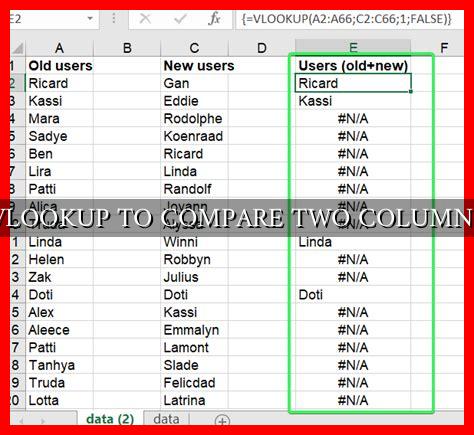
- Enter the VLOOKUP formula in the first cell of the new column. The formula should look something like this:
=VLOOKUP(A2, B:B, 1, FALSE). - Drag the fill handle down to apply the formula to the rest of the cells in the column.
Example
Let’s say you have two columns of data: Column A contains a list of student names, and Column B contains a list of student IDs.

. You want to compare the two columns to see which student names have corresponding IDs.
By using the VLOOKUP function, you can easily compare the two columns and identify any discrepancies. The formula would look like this: =VLOOKUP(A2, B:B, 1, FALSE).
Benefits of Using VLOOKUP
There are several benefits to using VLOOKUP to compare two columns of data:
- Efficiency: VLOOKUP allows you to quickly compare large sets of data without manually searching for matches.
- Accuracy: VLOOKUP helps reduce human error by automating the comparison process.
- Flexibility: VLOOKUP can be customized to suit your specific comparison needs by adjusting the parameters of the function.
Conclusion
Using VLOOKUP to compare two columns in Excel can streamline your data analysis process and help you identify patterns and discrepancies more efficiently. By understanding how to use VLOOKUP effectively, you can save time and improve the accuracy of your data comparisons.
For more information on how to use VLOOKUP and other Excel functions, check out this Microsoft support article.