-
Table of Contents
Compare Values in Two Columns in Excel
Excel is a powerful tool that allows users to manipulate and analyze data in various ways. One common task that users often need to perform is comparing values in two columns. Whether you are looking for duplicates, differences, or similarities between two sets of data, Excel provides several methods to help you achieve this. In this article, we will explore different techniques to compare values in two columns in Excel.
Using Conditional Formatting
Conditional formatting is a handy feature in Excel that allows you to highlight cells based on specific criteria. This can be useful for comparing values in two columns.

. Here’s how you can use conditional formatting to compare values:
- Select the range of cells you want to compare in both columns.
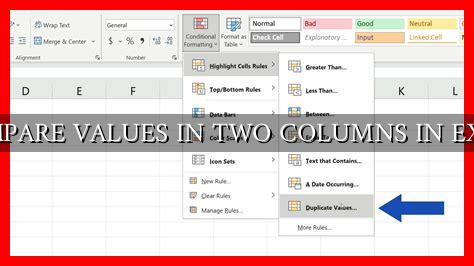
- Go to the “Home” tab and click on “Conditional Formatting” in the Styles group.
- Choose “Highlight Cells Rules” and then select “Duplicate Values.”
- In the dialog box that appears, choose the formatting options you want and click “OK.”
Excel will then highlight any duplicate values in the selected range, making it easy for you to identify similarities between the two columns.
Using Formulas
Another way to compare values in two columns is by using formulas. Excel provides several functions that can help you compare values, such as VLOOKUP, IF, and COUNTIF. Here’s how you can use these functions to compare values:
- VLOOKUP: This function allows you to search for a value in one column and return a corresponding value from another column. You can use this function to check if a value in one column exists in the other column.
- IF: The IF function allows you to set up conditional statements to compare values. You can use this function to check if two values are equal or not.
- COUNTIF: This function counts the number of cells within a range that meet a specific criterion. You can use this function to count the number of matching values between two columns.
By combining these functions, you can create complex comparisons between two columns and extract valuable insights from your data.
Using Power Query
Power Query is a powerful data transformation tool in Excel that allows you to connect, combine, and refine data from various sources. You can use Power Query to compare values in two columns by merging the two columns into a single table and then applying filters and transformations to identify differences or similarities.
Here’s how you can use Power Query to compare values in two columns:
- Go to the “Data” tab and click on “Get Data” in the Get & Transform Data group.
- Select the range of cells you want to compare in both columns and click “From Table/Range.”
- In the Power Query Editor, click on “Merge Queries” and select the columns you want to compare.
- Apply filters and transformations to identify differences or similarities between the two columns.
Power Query provides a visual interface that makes it easy to compare values in two columns and perform advanced data analysis.
Conclusion
Comparing values in two columns in Excel is a common task that can be accomplished using various methods, such as conditional formatting, formulas, and Power Query. By utilizing these techniques, you can gain valuable insights into your data and make informed decisions based on the comparisons you make. Whether you are looking for duplicates, differences, or similarities between two sets of data, Excel provides the tools you need to analyze your data effectively.
For more information on comparing values in Excel, you can refer to the official Microsoft Excel support page.