-
Table of Contents
How to Compare Two Columns in Excel
Excel is a powerful tool that allows users to analyze and manipulate data in various ways. One common task that users often need to perform is comparing two columns to identify differences or similarities. In this article, we will explore different methods to compare two columns in Excel effectively.
Method 1: Using Conditional Formatting
Conditional formatting is a useful feature in Excel that allows users to highlight cells that meet specific criteria. To compare two columns using conditional formatting:
- Select the first column you want to compare.
- Go to the “Home” tab and click on “Conditional Formatting.”
- Choose “Highlight Cells Rules” and then “Duplicate Values.”
- Select the formatting options and click “OK.”
Repeat the same steps for the second column and compare the highlighted cells to identify any differences.
Method 2: Using the IF Function
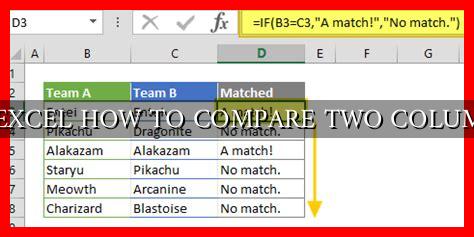
The IF function in Excel allows users to perform logical tests and return specific values based on the results. To compare two columns using the IF function:
- Create a new column next to the two columns you want to compare.
- Enter the formula
=IF(A1=B1, "Match", "No Match")and drag it down to apply to all rows.
This formula will return “Match” if the values in columns A and B are the same, and “No Match” if they are different.
Method 3: Using the VLOOKUP Function
The VLOOKUP function in Excel allows users to search for a value in the first column of a table and return a value in the same row from another column.
. To compare two columns using the VLOOKUP function:
- Create a new column next to the two columns you want to compare.
- Enter the formula
=IF(ISNA(VLOOKUP(A1, B:B, 1, FALSE)), "No Match", "Match")and drag it down to apply to all rows.
This formula will return “Match” if the value in column A is found in column B, and “No Match” if it is not.
Conclusion
Comparing two columns in Excel is a common task that can be done using various methods such as conditional formatting, the IF function, and the VLOOKUP function. Each method has its advantages and can be used depending on the specific requirements of the analysis. By following the steps outlined in this article, users can effectively compare two columns in Excel and gain valuable insights from their data.